
Give a substantial real estate video one useful destination on your website: a page where people can watch the explanation, scan the main answer, find the resource it demonstrates and take a relevant next step. Start with one video that answers a lasting client question and build the page around that task.
A video about organizing seller preparation, for example, can sit beside the blank planning sheet shown in the recording. Someone returning from a consultation can use the page without searching through a social feed or replaying the entire explanation.
HubSpot’s guide for content marketers, updated October 6, 2026, emphasizes clear answers to real audience questions and keeping information current. The practical application here is a maintained video resource page. Its value begins with what a visitor can understand and do; publication alone does not promise rankings or AI citations.
Decide what the visitor came to do
Choose a video that you own or are authorized to use, with an explanation that remains accurate. A process demonstration is a useful first candidate. An expired listing tour or a market update without a clear reporting period needs a different treatment.
Write a one-sentence purpose before opening the website editor: “This page helps sellers organize questions before their preparation meeting.” Then identify what the recording actually demonstrates. If it refers to a worksheet, prepare that worksheet. If it mentions a resource, check that resource before linking to it.
Also decide whether watching is the page’s main purpose. Google distinguishes a dedicated watch page, focused on one video, from an article or service page where video is supplementary. A supporting embed does not automatically make a page eligible for video features. An ordinary page can still be useful and appear as a text result.
Build the page around one complete explanation
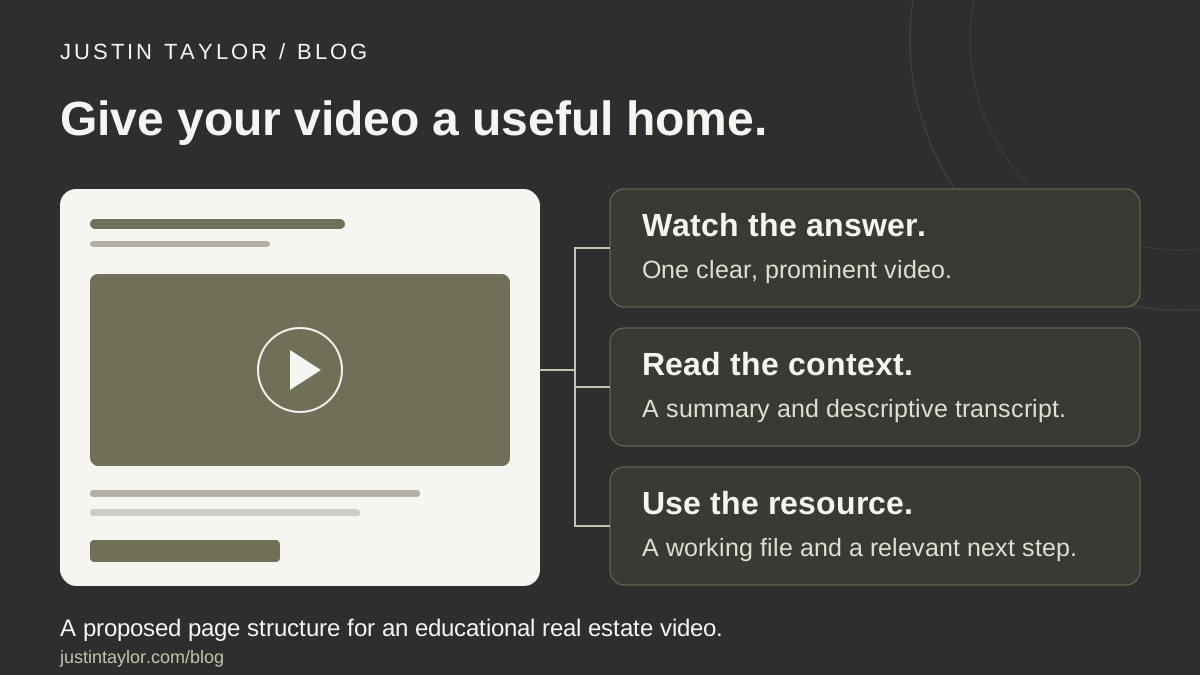
For a watch-focused page, use a specific heading, a brief orientation and a prominent player. Put supporting material beneath it. Avoid a long promotional introduction that delays the explanation people came to watch. Keep the presentation calm enough that the resource is easy to find on a phone.
The following is a hypothetical page plan for an agent’s own seller-preparation video. It does not represent an existing service process or a published client example.
| Page element | Example content | Visitor benefit |
|---|---|---|
| Heading and introduction | “How to Organize Your Seller Preparation Questions,” followed by a short explanation of who the video helps. | Confirms the subject before playback. |
| Main video | A demonstration of a blank sheet with columns for the room, question and person to ask. | Shows how to use the resource. |
| Written support | A concise summary, a descriptive transcript and the same blank sheet. | Makes the explanation easier to revisit. |
| Next step | An invitation to discuss the completed questions during a preparation meeting. | Connects the resource to a relevant conversation. |
Keep the worksheet consistent with the recording. If the video calls a field “question,” the download should not rename it “recommended repair.” Small differences can change what a visitor thinks they are being asked to decide.
Add the player and test the published version
For a YouTube video, the current official embedding instructions start on a computer:
- Open the video on YouTube.
- Select Share, then Embed.
- Copy the supplied HTML.
- Add it to the appropriate HTML or embed area in your website editor, or give it to your website provider.
Website editors differ, so use the field intended for an embed rather than pasting code into an ordinary paragraph. Age-restricted YouTube videos generally cannot play on third-party websites and redirect viewers to YouTube. Confirm that your chosen recording plays on the published page.
Ask your provider to keep the player responsive, reserve its space during loading and give it a descriptive accessible title. Prefer viewer-controlled playback. Test the page while signed out of your own YouTube account so an editor’s access does not disguise a visitor’s problem.
Write support that helps people use the explanation
The summary and transcript have different jobs. A summary gives a reader the main answer quickly. A transcript provides the spoken information in text. Keep both clearly labeled so a shortened recap is not mistaken for a complete alternative to the recording.
W3C’s transcript guidance distinguishes a basic transcript from a descriptive transcript that also explains important visual information. It recommends making the transcript easy to find and organizing it for reading. A corrected caption file can provide a starting point.
In the seller-preparation example, a transcript that only says “put it in this box” loses the demonstration. Identify the relevant column and explain the visible example. Review names, figures and qualifications against the recording, using the caption and clarity checklist. Preserve meaning when cleaning up conversational repetition.
Add a short “Resources used” section when appropriate. Name the worksheet and explain what it contains. Check that the actual download opens, its labels remain readable and it contains no private client information. A working resource is more useful than a decorative button promising something unavailable.
Give your website provider a precise brief
For video discovery, Google asks for a discoverable player rather than one loaded only after a click, plus an available, stable thumbnail. An indexed watch page is a prerequisite for video indexing, not proof that the video itself is indexed. Ask the provider to check the rendered page against Google’s video guidance, including any consent or player-loading behavior.
For an actual watch page, also discuss VideoObject structured data. Google’s required fields include the video name, thumbnail URL and first-publication timestamp. A description and duration add context. A direct video-file URL and an embedded-player URL are different: use contentUrl for the file itself, or embedUrl when the file URL is unavailable. Do not substitute an ordinary webpage address.
Supply the real video details rather than asking the provider to guess. The video’s original publication date should not become today’s date merely because you added it to your website. Have the markup validated; valid markup does not guarantee a special search appearance.
Review the whole journey before sharing
Send a colleague the page without explaining how it works. Ask them to identify the topic, start playback, find the written version and open the promised resource. Record where they hesitate. This small usability check can reveal a confusing label faster than discussing the layout in the abstract.
BEFORE YOU SHARE
Recognize: The heading matches the video’s actual answer.
Watch: Playback and controls work on desktop and phone.
Read: Captions and written support preserve the meaning.
Use: The promised resource opens and matches the demonstration.
Continue: The next step leads to a relevant, working destination.
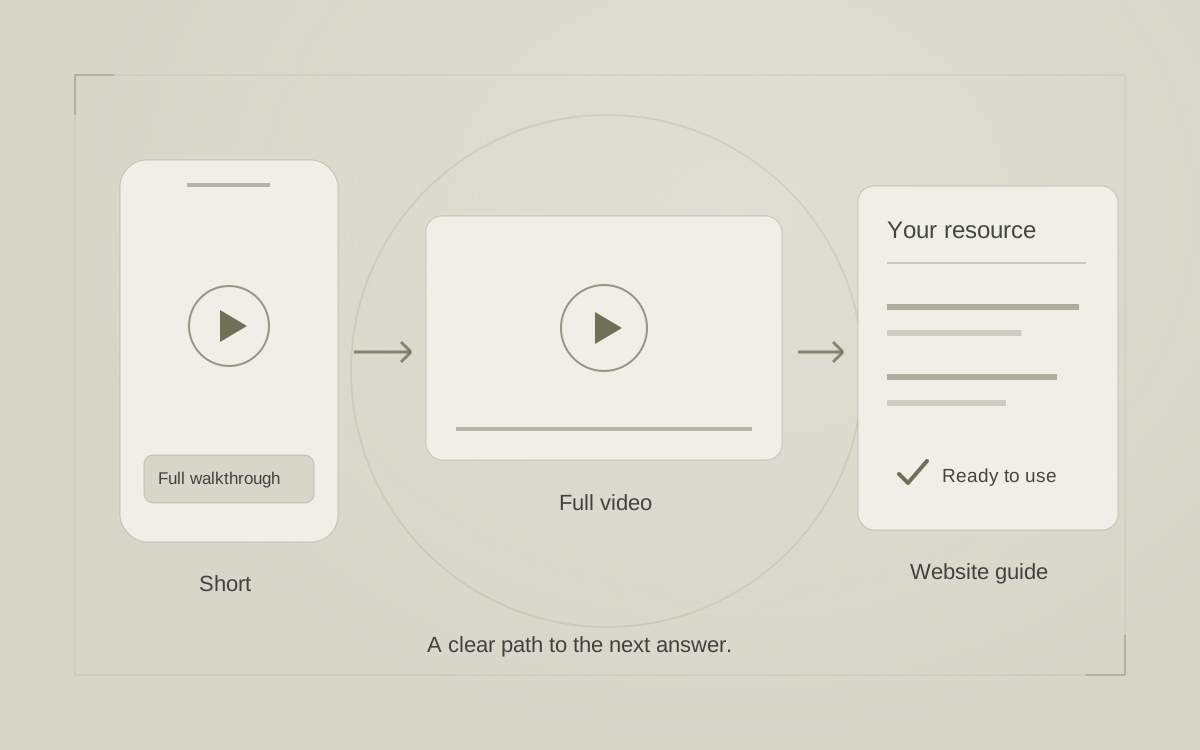
Link the finished page from a related guide or service explanation. Use it in relevant follow-up conversations and connect it from the video description where supported. The Shorts and website-linking guide explains the differences between YouTube link placements.
Keep the video and page in sync
Record the website URL, video URL, supporting file, reviewer and next review date together. If the worksheet or process changes, check the recording too. A revised paragraph cannot correct an outdated instruction that visitors still hear in the video.
Track useful questions, resource requests and relevant conversations separately from video views. Start with one maintained page, learn from how people use it, then apply that learning to the next explanation. Justin’s YouTube and video strategy support helps agents connect client questions, clear content and practical next steps across their channels.
Sources & further reading
Platform guidance and research referenced in this article. Reviewed October 23, 2026.

Growth & Strategy Manager at Inspire Title Team | WFG Title. Marketing and AI guidance for real estate professionals.