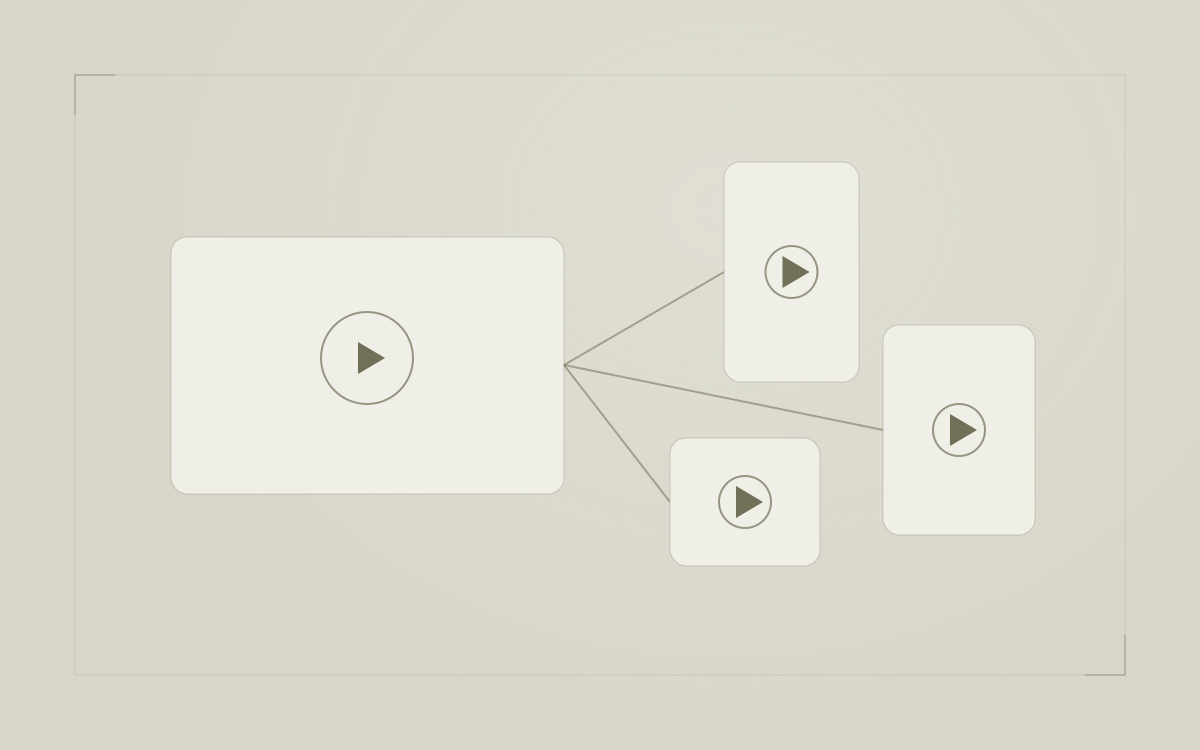

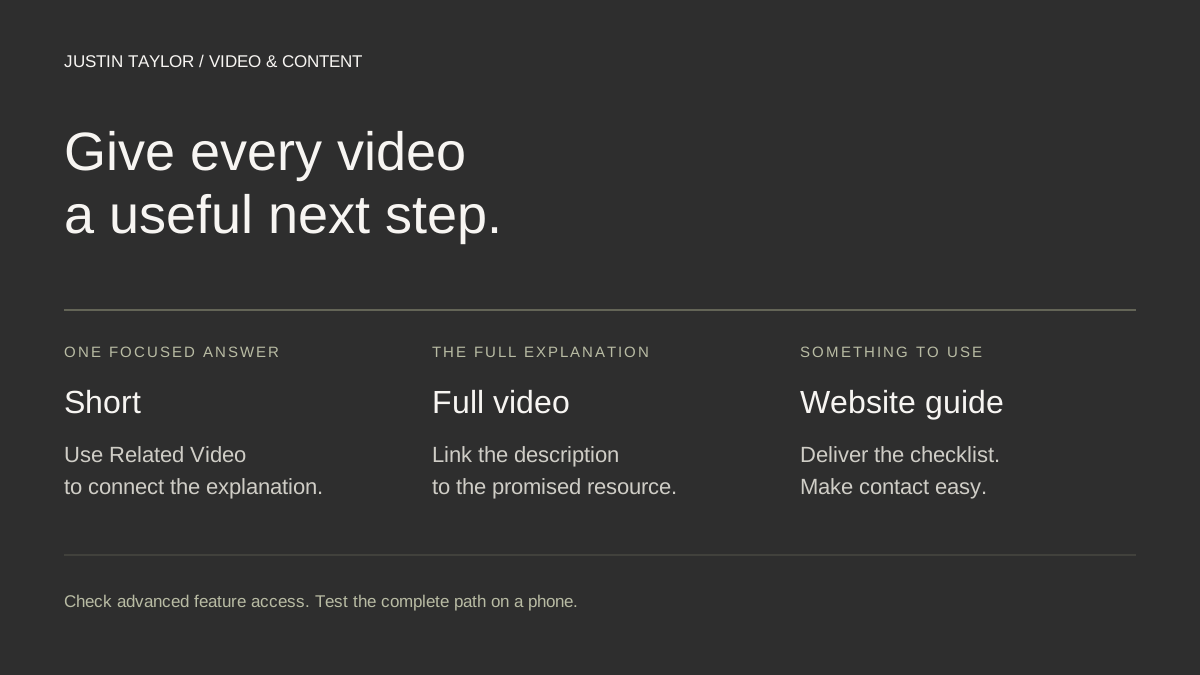
To connect a YouTube Short to a fuller real estate explanation, use YouTube’s Related Video feature. It creates a clickable route to another video on your channel. If the next step is a website checklist or guide, place that resource link in the full video’s description and explain what viewers will find there.
There is an important distinction: a website address pasted into an ordinary Short’s description or comments is not clickable. Both the related-video feature and clickable external links in long-form descriptions require the appropriate advanced feature access. Check that access before recording a call to action.
HubSpot’s guide to multi-channel content distribution, updated September 28, 2026, emphasizes adapting content to the channel where people encounter it. For an agent, one useful application is a connected path from a focused clip to a complete answer and an immediately useful resource.
Map the viewer’s next question before recording
Choose a subject where a short explanation naturally leads to more detail. The Short should answer something on its own; the full video should expand that answer. A viewer should understand the reason for moving between them.
Consider a hypothetical agent creating a guide to preparing for listing photos. The goal is to help a seller organize a conversation with the agent and photographer, without promising that particular improvements will increase the sale price.
| Destination | What it delivers |
|---|---|
| Short | One preparation tip: walk through each room and list questions before the photography planning conversation. |
| Full video | A demonstration of a room-by-room planning sheet, including preparation tasks and questions to resolve. |
| Website guide | The blank planning sheet, written instructions and a clear way to ask about the agent’s process. |
These are example assets to create, not resources that every agent already has. Build the promised guide before directing anyone to it. If the full video adds nothing beyond the Short, choose a better destination or improve the explanation first.
Understand which YouTube links actually work
YouTube’s official link guidance distinguishes ordinary pasted URLs from dedicated linking features. For this workflow, remember three points:
- Shorts descriptions and comments: ordinary pasted URLs are not clickable.
- Related Video: this connects a Short to eligible content on your own YouTube channel, rather than directly to a website.
- Long-form video descriptions: external URLs can be clickable when your channel has advanced feature access.
YouTube also documents a separate brand-site linking feature for reported sponsored campaigns. That feature has its own brand-partnership conditions; it does not turn a website address pasted into an ordinary Short into a clickable link.
Keep the spoken instruction consistent with the actual destination. “Watch the full walkthrough through the related video” sets a different expectation from “download the checklist.” The viewer needs to know which action happens now and which comes afterward.
Check your channel’s feature access
On a computer, open YouTube Studio and go to Settings → Channel → Feature eligibility. Review the status under Advanced features. If access is not enabled, follow the options available to that channel.
According to YouTube’s advanced-feature documentation, access involves phone verification followed by sufficient channel history or identity verification through ID or video. The identity-verification options are not offered to every creator. Phone verification alone is not the complete advanced-access process.
For a team channel, confirm that you are working in the intended channel before changing anything. Have the channel owner handle verification if required. Do this preparation before adding language to several videos that depends on a feature you cannot yet use.
Add the full video to your Short
Upload the full explanation to the same channel first. YouTube permits a public or unlisted video as the related destination, provided it meets its Community Guidelines. For a public educational library, choose public visibility if you want the full video to be publicly discoverable.
After uploading the Short, follow YouTube’s related-video setup:
- Open YouTube Studio while signed in to the channel.
- Choose Content in the navigation.
- Open the Short you want to update.
- Use Related Video to choose the matching full explanation from that channel.
- Save the change.
The related-video link appears beneath the channel handle in the Shorts player. If your intended destination is unavailable, check its channel and visibility, then confirm your advanced-feature access.
Watch the selected video after saving. Similar titles can make it easy to attach an older explanation or a different edit. Check the actual content, not just its thumbnail.
Write a clear handoff between the videos
Give the Short a complete, useful point before the invitation to continue. For the listing-photo example, an agent might say:
Before your photography planning conversation, walk through each room and note what needs attention and what you want to ask. The related video shows how to organize those notes on a simple planning sheet.
The longer video should immediately deliver that demonstration. Avoid asking viewers to sit through another long introduction before reaching what the Short promised.
At the relevant moment in the full video, explain the website resource plainly: “The description links to the blank planning sheet and the written steps.” Put a descriptive label beside the complete website URL near the beginning of the description, where it is easy to locate.
Use the page containing the resource rather than your homepage when possible. The page title, video description and spoken invitation should describe the same thing. If the resource requires a form, say so before someone follows the link.
Test the complete path on a phone
Review the published experience from the viewer’s side, not only from Studio. Start in the Shorts player on a phone. Follow the related-video link, open the full video’s description and visit the website page.
- Does the related link open the intended explanation?
- Is the promised demonstration easy to find in the video?
- Does the website link open the correct public page?
- Can someone read and use the resource comfortably on a phone?
- Does the contact option clearly explain the next step?
Ask a colleague who did not build the sequence to try it without instructions. If they reach the full video but cannot find the sheet, improve that transition before producing more clips. A working URL is only part of a usable experience.
Keep the connections useful over time
Record the Short URL, full-video URL, resource page, owner and review date together. When a guide moves or an explanation changes, that record shows which links and invitations need attention. Add the review to your video content calendar.
Review viewer questions, use of the resource and relevant inquiries separately from Short views. If your website has appropriately configured analytics, inspect visits to the resource as one signal. Those visits alone do not establish that a particular Short caused a consultation. Without that measurement, record direct feedback and ask new contacts which resource helped them.
Start with one complete sequence. The video repurposing guide can help you choose the clip, while the YouTube SEO guide covers titles and channel organization. For help connecting those pieces to your business, explore Justin’s YouTube and video strategy.
Sources & further reading
Platform guidance and research referenced in this article. Reviewed October 7, 2026.

Growth & Strategy Manager at Inspire Title Team | WFG Title. Marketing and AI guidance for real estate professionals.