
Before publishing a real estate video, review the captions against the finished audio, check that important visual details are explained, and watch the result on a phone. Give that review an owner and a place in the publishing schedule. Automatic transcription can start the work, but the finished explanation needs a person who understands the subject.
This matters when a video includes a local place name, a client preparation step or a qualification that changes the meaning of a sentence. A polished edit can still leave viewers with the wrong words or an example they cannot follow.
HubSpot’s content-workflow guide, updated October 1, 2026, emphasizes defined tasks and responsibilities. Applied to real estate video, that means making caption and clarity checks an explicit delivery step. The checklist below covers recorded educational videos, with current YouTube instructions for publishing the corrected text.
Prepare the review before the recording
Make a short reference sheet for the editor: the topic, correct spelling of names and places, the resource being demonstrated and any information that needs a source and date. Add the person who will approve the explanation. A solo agent can fill every role, but separating the checks still helps.
For a hypothetical video about preparing for listing photos, the sheet might include the photographer’s name, the labels on a room-planning worksheet and the exact website page where viewers can find it. This is a production example, not a report of a client project or its results.
Record a short sound sample and listen before the full take. Leave room for one speaker to finish before the next begins. Those habits make the conversation easier to follow and give the editor clearer material to work with.
Give captions and on-screen graphics different jobs
W3C’s caption guidance describes captions as synchronized text for speech and meaningful non-speech audio. Closed captions can be switched on or off; open captions remain visible. A short headline such as “Plan each room” does not carry the complete explanation in the audio.
Use a heading to orient the viewer and captions to convey what is being said. For a two-person conversation, identify a speaker when their identity would otherwise be unclear. Include a sound description when the sound matters to understanding the scene, rather than adding decorative labels throughout.
Keep the original video, its caption file and the edited social versions together. If you later change a sentence, that folder makes it easier to identify which text and exports need another review. Use filenames that distinguish the approved cut from earlier drafts.
Check the words that can change the meaning
YouTube warns that automatic captions can misrepresent speech, including when pronunciation, accents or background noise create difficulty. They may also take time to appear after upload. Treat an available automatic track as material to review, not evidence that the video is finished.
Play the final edit while reading the captions. Check the entire recording, then make a second pass through names, numbers and qualifying language. The following examples show what a real estate team could put on its review sheet.
| What the reviewer notices | Why it matters | What to do |
|---|---|---|
| A local place name is transcribed as an unrelated phrase. | The viewer cannot identify the area being discussed. | Check the spelling against the reference sheet and correct the caption. |
| The spoken word “not” is missing from an instruction. | The displayed instruction reverses the speaker’s meaning. | Restore the missing word and replay the complete sentence. |
| The captions are accurate, but the speaker gives an incorrect date. | Changing only the text would leave two conflicting versions. | Correct the recording or edit the explanation, then regenerate and review its captions. |
| A sentence continues over a cut to a different topic. | The text appears to describe the wrong example. | Adjust the caption timing to the finished edit. |
Do not silently rewrite an inaccurate spoken claim into an accurate caption. The audio and text need to agree. If someone else supplied the explanation, send them the timestamp and the specific question that needs resolving before approval.
Correct the caption track in YouTube Studio
On a computer, use YouTube’s caption-editing workflow:
- Sign in to YouTube Studio and select Subtitles.
- Open the video and find the language track.
- Select Edit in the Subtitles column. For an automatic track, choose Duplicate and edit; follow the Continue prompt if shown.
- Edit the affected lines while checking them against playback.
- Adjust the timestamp fields where needed. Use Edit timings if the fields are not visible.
- Select Publish when the text and timing are ready.
Editing automatic captions creates a new track containing your revisions. Review that published track in the player afterward.
If no usable track exists, YouTube also supports adding captions. From the video’s Subtitles screen, add the language if needed, select Add, then choose an available method. You can upload a supported caption file or use Type manually and publish the entered text. Check synchronization after processing; pasted words alone are not a completed review.
Make the demonstration understandable beyond the picture
Captions carry the audio. They do not automatically explain a worksheet, a highlighted map or a gesture that the speaker never describes. W3C’s media-planning guidance treats access to meaningful visual information as a separate consideration and recommends planning captions, descriptions and transcripts together.
In the listing-photo example, replace “write it here” with “write the room name in the first column, then list the questions you want to discuss with the photographer.” Show a blank example as you explain it. The spoken words now identify the task without relying entirely on the pointer.
Listen once without watching the screen. Note anything you cannot understand from the audio. Where a visual carries additional information, plan an appropriate description. On a supporting website page, a descriptive transcript can also explain the important visuals in text. These checks improve the resource; they are not a complete accessibility assessment.
Review the version people will actually watch
Open the final version on a phone with captions enabled. Check whether the text covers a worksheet label, a face or the resource address. Watch through transitions and the closing instruction. A readable opening does not prove that every later caption fits.
For a vertical social edit, review its exported crop independently. If captions are built into the video, check how they interact with the destination’s own caption display and controls. Keep essential text away from areas obscured in the actual player preview, rather than assuming one layout works everywhere.
READY TO PUBLISH
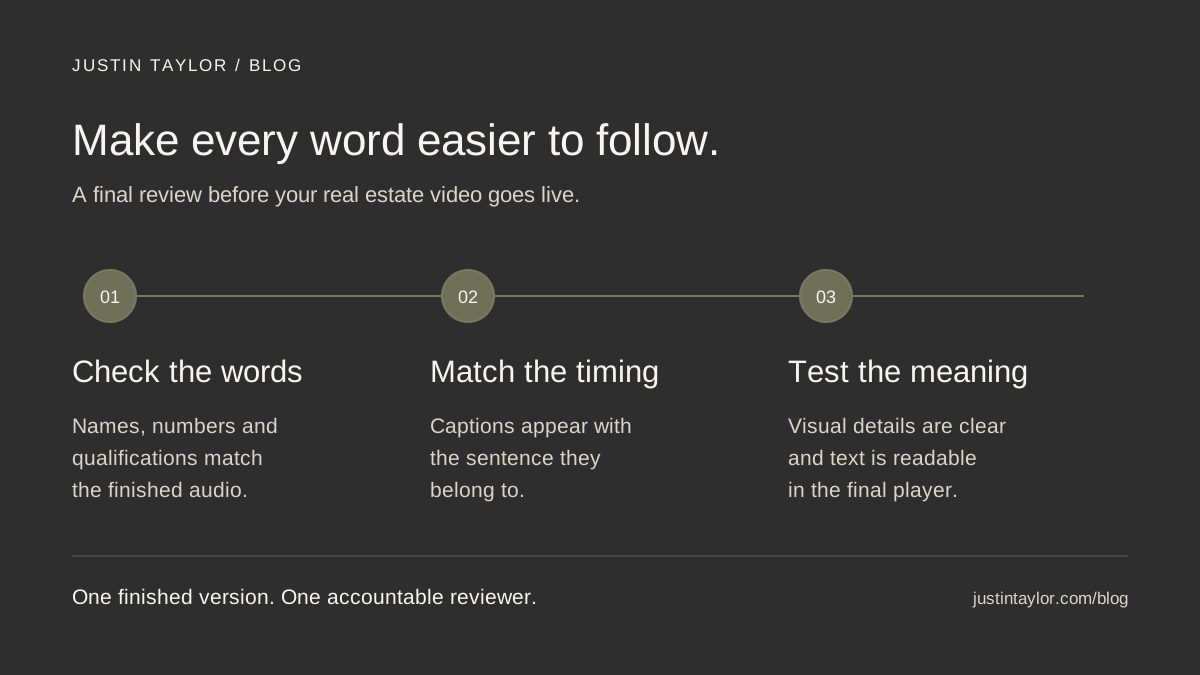
Words: Names, numbers and qualifications match the audio.
Timing: Captions follow the sentence they belong to.
Meaning: Important visual details are explained.
Display: The finished text is readable in the intended player.
Approval: One named person has reviewed this exact version.
Make the next review easier
Add the video URL, final filename, reviewer and approval date to your content calendar. Keep recurring spelling corrections in the reference sheet. When you adapt the video into other formats, carry those corrections forward and check each new cut.
After publication, record questions that suggest something remained unclear. Use the YouTube review routine to turn those observations into the next recording brief. Justin’s YouTube and video strategy support helps agents and teams build that connection between a useful question, a clear explanation and a publishing process they can maintain.
Sources & further reading
Platform guidance and research referenced in this article. Reviewed October 18, 2026.
- HubSpot: Content Workflow: What Marketers Need to Know — updated October 1, 2026
- YouTube Help: Use automatic captioning
- YouTube Help: Edit or remove captions
- YouTube Help: Add subtitles & captions
- W3C Web Accessibility Initiative: Captions/Subtitles
- W3C Web Accessibility Initiative: Planning Audio and Video Media

Growth & Strategy Manager at Inspire Title Team | WFG Title. Marketing and AI guidance for real estate professionals.