
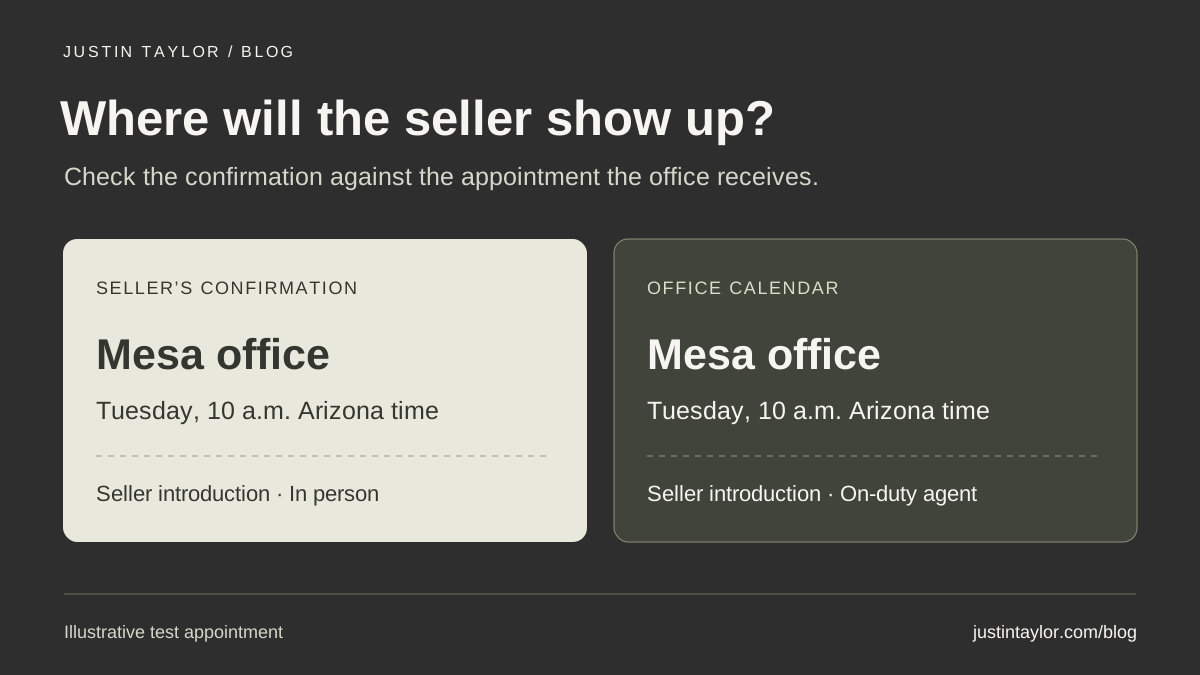
Imagine a seller finding your Mesa office on Google Maps. They tap the booking option and pick Tuesday at ten. The confirmation email tells them to meet you in Tempe. Where did the office change?
To check a Google Business Profile booking link, start on the public profile and follow it all the way to the appointment confirmation. The office, person or team, meeting format and time should agree at every step. If your profile offers booking, give it a page where a visitor can finish scheduling the appointment you offer.
Decide which appointment belongs on this profile
Write down what someone should be able to book after finding this particular profile. For a brokerage office, that might be an introductory meeting with the agent on duty at that location. For an individual agent, it might be a call with that person. The distinction matters when a shared scheduling account can quietly assign the next available team member.
Alex Lindley’s October 26, 2026 Semrush guide explains how people use a profile’s contact information to reach the business they found. Apply that same test to the appointment itself. Could the receptionist who answers the phone and the seller holding the confirmation describe the same meeting? Read the Semrush guide to Google Business Profile.
For the hypothetical Mesa office, suppose the offer is a 20-minute seller introduction with an available agent, in person. Now the team can inspect the calendar with a specific expectation. A slot with a different agent at the same office may be perfectly appropriate. A slot at a different branch, or a video call without an office visit, would change what the seller agreed to.
Give the booking button a specific destination
Google requires a verified profile for business links. Eligibility varies by business and region. An action link needs a dedicated business page that lets the visitor complete the action. A business with multiple locations needs a destination for the specific location. Use the full scheduling URL. Google excludes link shorteners, messaging links and social media pages from these action links. Check Google’s business link policies.
Open your candidate URL in a private browser window. Read the first screen before selecting a time. If it shows a corporate logo and an unlabeled calendar, a returning employee may know the destination while a first-time visitor has to guess. A heading such as “Seller introduction at our Mesa office” gives that visitor an immediate check. Put the meeting format and the expected length near the available times.
| Candidate destination | Decision |
|---|---|
| A brokerage homepage with offices across the Valley | Use the dedicated Mesa scheduling page for booking. The homepage asks the seller to find the office again. |
| A page headed “Mesa” that shows appointments from every branch | Change the calendar routing. A location-specific heading alone cannot keep the appointment in Mesa. |
| A form that promises a callback after submission | Describe it on the website as a callback request. Use a scheduling page that can complete the booking for the Google appointment link. |
| A Mesa calendar with a choice of times and an office confirmation | Test one appointment through to the confirmation and the team calendar before adding the URL. |
If your profile has no booking control, use its ordinary website link to help people reach you. A clearly labeled scheduling or contact option on the relevant office page still gives clients a practical next step.
Run one appointment through both sides of the calendar
Agree with the office on a test slot and use a team-controlled email address. Have someone who rarely touches the scheduler start from the proposed public URL on a phone. Ask them to say where they think they are going and whom they expect to meet. Give them enough time to answer before showing them your brief. Hesitation over the city or whether the meeting is virtual tells you exactly which copy to improve.
Complete the test and compare the visitor’s confirmation with the staff calendar entry. Check the day, time zone, meeting type, street address or call instructions, and assigned person. A team based in Arizona may be talking with someone relocating from another time zone. If the booking page converts times for the visitor, inspect how the confirmation identifies that time and how the receiving agent sees the appointment.
When the records disagree, note where the two descriptions first diverge. If the booking page and staff event both say Mesa but the email gives Tempe directions, inspect the confirmation template. If the staff event lands on a Tempe agent’s calendar, look at assignment rules. Cancel the test afterward and check that the time becomes available again if that is how the office intends its calendar to work.
Add the tested link and check what Google displays
- Sign in with the account that manages the verified profile. In Google Search, open the profile and choose Booking if it appears. In Maps, choose Edit profile and select the booking transaction type if available.
- Choose Add link or Add another link, paste the tested URL and save. Where several options are present, use Set preferred link to select the one your office wants displayed first.
- Once the edit is approved, open the public profile in Search and Maps. Follow the published option and compare the destination with the page you tested. See Google’s instructions for managing local business links.
A former scheduling provider may still appear as a second choice. Changing the preferred link leaves that other route available. For a provider-added booking link, Google directs businesses to request removal through the provider. Keep the request date and the affected profile URL. If the link is still there after five business days, Google’s instructions provide a way to report the issue.
Keep a record that the front desk can use
Give the person who manages the calendar a short record with the public profile URL, the approved destination, the appointment type, the receiving calendar and the date of the last successful test. When an agent changes offices or the team switches schedulers, that person can find the public routes that need attention. Include appointment availability in the office’s holiday review. Check how office hours and appointment schedules fit together.
Measure confirmed appointments in the system that received them. Google says Business Profile booking performance data is unavailable for custom links. A completed appointment in a shared calendar establishes that someone booked, but its source may be unknown if your website and profile send people to the same calendar. Report the source only when your scheduling records identify it. Read Google’s booking and performance guidance.
Start with the appointment clients ask about most. Once an outside visitor can book it and the office receives the right details, use that tested route as a reference for the next branch or practitioner. If a team member taking over the profile also needs access, the profile access checklist covers that handoff.
Sources & further reading
Platform guidance and research referenced in this article. Reviewed November 9, 2026.

Growth & Strategy Manager at Inspire Title Team | WFG Title. Marketing and AI guidance for real estate professionals.