
A real estate Google Business Profile photo refresh should help a prospective client recognize the professional, understand the business and arrive at the right place when visits are appropriate. Start with the gaps in that experience, then prepare a small set of current, accurate images. A larger gallery is not automatically a more useful one.
The practical approach is to audit what is public, plan the missing shots, check the files and confirm the result after uploading. This guide focuses on that process for an existing profile. If the profile itself needs attention, begin with the Google Business Profile guide for real estate agents.
Audit the gallery as a prospective client
Semrush’s local SEO guide, dated October 5, 2026, emphasizes accurate business information and ongoing monitoring. Apply that maintenance principle to photography: a profile can have the correct phone number while its images still suggest a former office, affiliation or team.
Open the public profile on your phone. Look at the first images and then the wider gallery. Compare what you see with the biography and contact page on your website. Write down specific mismatches rather than a general instruction to “improve the photos.” An old brokerage logo and a confusing entrance need different fixes.
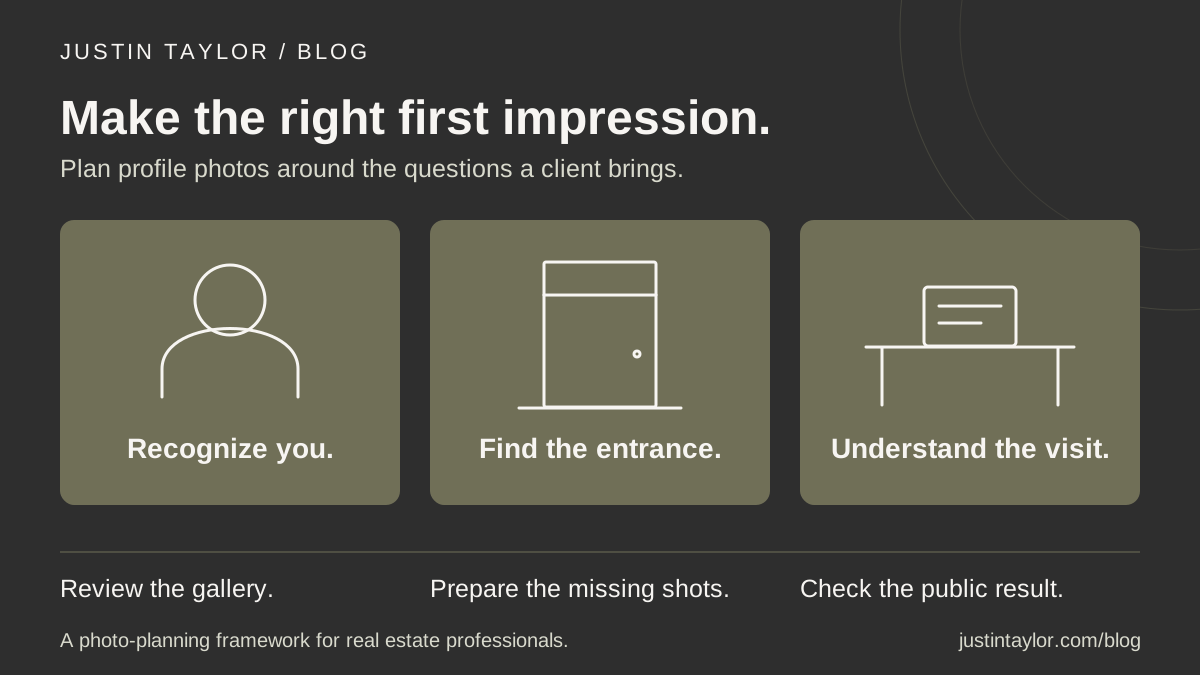
Use three questions to guide the review: Would someone recognize the person they are meeting? Would an office visitor recognize the correct entrance? Does the setting reflect how the business operates today? Mark each image keep, replace or investigate, and note whether your business or another contributor uploaded it.
Plan photos around client questions
Google’s business-photo guidance describes exterior, interior, team and at-work images as ways to explain a business. The following shot list adapts that idea to a hypothetical real estate office. Choose the rows that fit your actual setup.
| Client question | Useful photo | Check before sharing |
|---|---|---|
| Am I looking at the right agent? | A current portrait with a clear view of the person. | The name and affiliation match the linked biography. |
| Which entrance should I use? | The actual customer entrance, including recognizable signage. | The image shows the entrance visitors are instructed to use. |
| Where will we meet? | The real reception or meeting area. | The room is used by this business and looks as it does today. |
| What does preparation look like? | A real workspace with a generic consultation outline. | No client records, account details or private messages are visible. |
| Who else might I meet? | A current team photograph, where relevant. | Everyone shown is still part of the represented team. |
For example, an agent whose suite is reached through a shared lobby might need a clear entrance image more urgently than another portrait. Give the photographer a specific brief: show the sign and approach a visitor will recognize, with enough surrounding context to distinguish the doorway. That is a practical communication task.
Use this as a selection framework, not a requirement to manufacture every scene. If you meet clients elsewhere, do not create a gallery that implies a staffed walk-in office. Google’s business representation rules require accurate locations and have specific practitioner and service-area provisions. Photos do not establish location eligibility.
Prepare a small, accurate set of files
Keep the originals and make separate upload copies. Google’s published photo standards specify JPG or PNG, files between 10 KB and 5 MB, a recommended resolution of 720 × 720 pixels and a minimum of 250 × 250 pixels. Images should be sharp, well lit and faithful to reality, without substantial alterations or excessive filters or AI.
Preview each export at phone size. If the agent’s face or entrance sign becomes difficult to identify, choose a better crop or another frame. Keep useful context around the subject so a tighter presentation does not remove the reason for the image. Do not stretch a narrow photograph to fill a square.
Review the background at full size, too. A monitor, desk calendar or open folder can reveal information that was easy to miss during the shoot. Use an empty meeting room or generic sample materials when those explain the service just as well. Google’s content policies restrict personal information and misleading content.
Keep a brief record alongside the selected files: subject, capture date, approved use, intended profile and review owner. For a brokerage with several offices, include the location in the internal filename. This makes it less likely that someone uploads one branch’s reception area to another branch’s profile.
Upload, then check the public result
On a computer, sign in with the account managing the intended profile. Google’s current photo-management instructions give this route:
- Open Google Search or Maps and search for the business name and city.
- Select Photos, then Add photos, and select the files.
- For a logo or cover, use Add a logo or Add a cover photo in Photos. Existing selections use Change logo or Change cover.
The profile must be verified before its photos appear publicly. Google says media can take 24–48 hours to appear. Pending means processing or an unverified profile; Not approved means the media was flagged for a policy violation; Live means it appears to customers. Choosing a cover does not guarantee it will be the first image shown.
After processing, check Search and Maps on a phone. Confirm the new images represent the right business and remain understandable when displayed. Save a dated note of what is public. A successful upload is only one part of completing the refresh.
Handle older images according to their source
For your own outdated upload, Google’s removal instructions are to open Photos, select the image and choose Delete, then confirm. Before removing a useful image, check that its replacement is live.
A customer upload follows a different process. Google allows removal requests for customer media that violates its policies; it does not promise removal because a business prefers another image. In Search, open Photos, choose View all photos, select the item and use Report a problem. Choose the applicable reason and submit. Google notes that review can take several business days and duplicate requests can delay it.
If the gallery exposes a broader identity problem, address that separately. A former-office photograph may accompany an old website address or inconsistent contact page. The office-move checklist and local citation audit help organize those corrections.
Give the gallery a maintenance owner
Assign one person to review the gallery when an office, team member, affiliation or meeting arrangement changes. Add a quick photo check to the existing monthly profile review. A calendar reminder should prompt a decision about accuracy, not an obligation to upload another picture.
Measure completion with concrete checks: the current portrait is visible, the correct entrance is represented, outdated business uploads have been addressed and the linked website agrees with the profile. Do not treat a photo refresh as proof of improved rankings or attribute a new inquiry to one image without evidence.
For the first session, choose the most confusing image and one missing explanation. Prepare those replacements, verify their public appearance and record the next review date. Justin’s Google Business Profile support can help connect that work with profile accuracy and the website experience a prospective client reaches next.
Sources & further reading
Platform guidance and research referenced in this article. Reviewed October 25, 2026.
- Semrush: Local SEO — dated October 5, 2026
- Google Business Profile Help: Business-specific photo guidance
- Google Business Profile Help: Manage photos and videos
- Google Business Profile Help: Business representation guidelines
- Google Maps: Prohibited and restricted content
- Google Business Profile Help: Report inappropriate photos or videos

Growth & Strategy Manager at Inspire Title Team | WFG Title. Marketing and AI guidance for real estate professionals.