
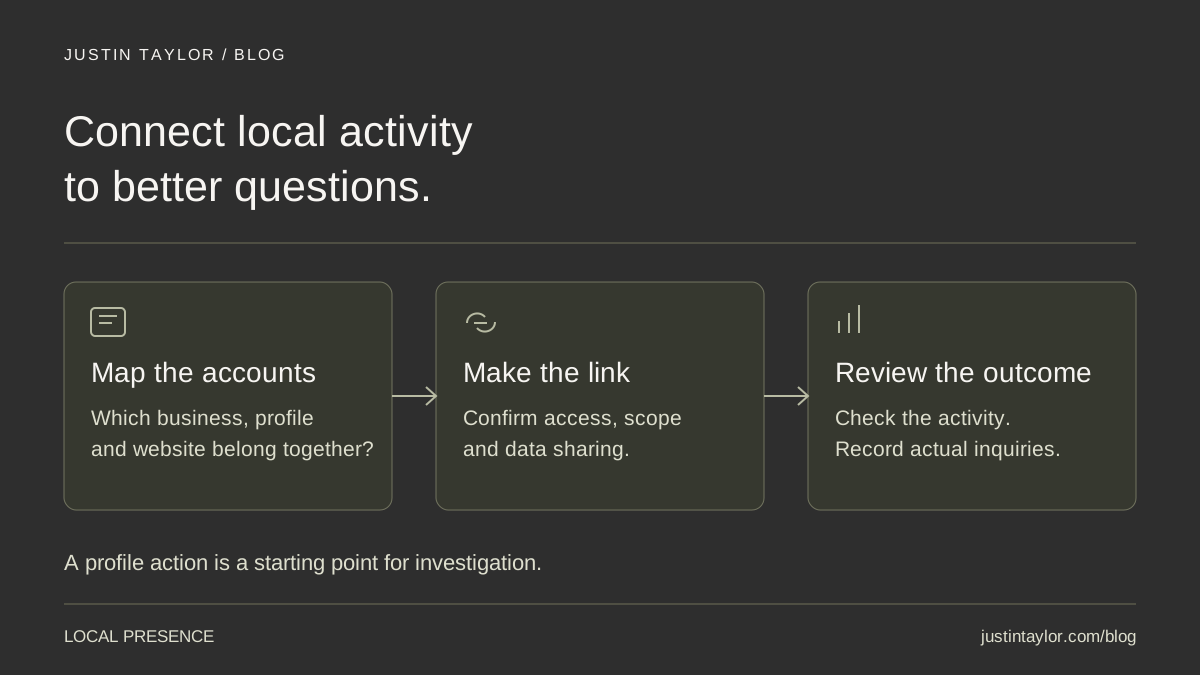
Real estate professionals can connect Google Business Profile to Google Analytics to review profile interactions alongside their website reporting. The setup happens in Analytics, with access required to both accounts. Before connecting anything, decide which business profiles belong in the report and what decisions the information should support.
The connection is especially useful when local marketing conversations stop at “people found us on Google.” It gives an agent or brokerage a place to inspect activity, while leaving an important question for the team to answer: did that attention lead to a useful conversation?
Semrush’s local SEO guide, dated October 5, 2026, includes ongoing monitoring alongside profile maintenance and website improvements. This article takes that measurement idea into a specific real estate workflow. Google’s official instructions and reporting limits below were reviewed October 14, 2026.
Map the business, profile and website first
Start with a short account map. Record the public Business Profile name, its location or service area, the website it links to and the Analytics property used for that website. Add the person responsible for each account. An agent’s personal website, a brokerage website and a lender’s branch website may have different owners and reporting needs.
Use that map to choose the intended scope. A brokerage director might want a combined view of office activity. An individual agent may need to understand only the profile connected to their own business. Access to several profiles does not mean all of them belong in the same report.
For example, imagine an agent who manages their own profile and helps administer the brokerage’s office profile. Linking both without discussing the reporting purpose could make a personal marketing review misleading. Write the intended profile list down before opening the connection screen.
If the profile itself needs attention, use the Business Profile setup guide for real estate agents first. This reporting connection does not resolve incorrect business details or establish eligibility for a new listing.
Check access and website measurement
Google’s linking instructions require an Editor or Administrator role on the Analytics property and Owner or Manager access to the Business Profile. Use the account that has the necessary permissions, or involve the people responsible for granting them.
Keep account access with the business and invite collaborators through the appropriate permissions. A marketing assistant should not need someone else’s password to complete the work. Have the account owner review the planned profile list and data sharing before the connection is confirmed.
Website measurement is a separate check. Google’s Analytics setup documentation explains how a website’s Google tag collects activity and how the Realtime report can confirm receipt of data. Ask whoever maintains your website to verify the correct property is receiving activity. Connecting a Business Profile is not a substitute for configuring website measurement.
Also agree on what a meaningful website action is. A completed request for a buyer consultation is different from a page view or a click on a phone number. Have your website specialist check the intended action separately before using it in a lead report.
Connect the profile in Google Analytics
On a computer, sign in to Google Analytics and select the intended property. Then follow Google’s documented path:
- Open Admin.
- Under Product links, select Google Business Profile links.
- Choose Link.
- Select the Business Profile or profiles you intend to connect when prompted.
- Review the data-sharing information and confirm the connection.
Save the connection date and selected profiles in your account map. Google says an active connection also produces a notice in the Business Profile Performance area indicating that aggregated data is being shared with Analytics.
If the option or expected profile is missing, first recheck the signed-in account, selected Analytics property and permissions with the account administrator. Use Google’s linked help instructions for the current interface. Avoid creating a replacement profile or a second Analytics property just to work around an access question.
Understand what the connected report can show
According to Google’s Analytics integration documentation, linking adds a Google Business Profile reporting collection. It includes profile activity such as website clicks, calls and direction requests. The documented history is limited to six months.
There are important boundaries: multiple linked profiles are combined, with no individual-profile filtering or segmentation inside this integration. These metrics cannot be used in custom explorations or comparisons. Linking shares the supported metrics together; it does not offer a selection of individual data points. Subproperties are not supported.
Analytics can also display metrics that are irrelevant to your business type, while the native Business Profile dashboard hides irrelevant metrics. Treat an unsuitable card as a reporting detail, not an instruction to add a service. For office-by-office questions, review the individual profiles in Business Profile rather than treating the combined Analytics total as an office comparison.
Separate profile actions from business outcomes
Google’s performance definitions describe calls as clicks on the profile’s call button and website clicks as clicks on its website link. Direction requests are requests for directions. These measures do not establish that a conversation happened, a visitor arrived or a client hired you. Profile performance can also include activity from both organic results and Google Ads.
| Observed activity | Useful follow-up check | Record separately |
|---|---|---|
| People click the profile’s website link. | Does the destination explain your services and make the next step clear on a phone? | Actual inquiries received through the website. |
| People use the call button. | Is the published number correct, and does the team have a reliable response process? | Answered conversations and follow-up appointments. |
| People request directions. | Are the address, access instructions and appointment expectations accurate? | Confirmed visits or appointments in the business’s own records. |
Keep these records connected by a shared review period, without claiming they identify the same people. A profile click and a later inquiry may be related, but a pair of totals cannot prove that journey. Ask new contacts how they found the business when appropriate, and distinguish their answers from measured website activity.
Turn the report into one useful monthly action
Choose a consistent review period and note context that could affect the comparison: a holiday, advertising change, office move or updated website destination. Record the profiles included, the dates examined and one question the team wants to investigate.
Consider a hypothetical agent whose profile gets website clicks but whose website receives few useful questions. The next action could be to open the profile’s destination on a phone and walk through it as a prospective client. Does it clearly identify the agent, explain the service and offer an appropriate way to connect? Is the contact form working? Those checks are more actionable than immediately posting more often.
If visitors need area information before reaching out, a useful community page may help answer those questions. If the profile and website disagree about contact details, start with the local citation audit. Choose a change that addresses what you actually found, then record its date and review it again.
The connection makes reporting easier to organize. Its value comes from the decisions that follow: clearer information, a better destination and dependable follow-up. Justin’s Google Business Profile and local presence support helps real estate professionals connect those pieces into a more useful experience for potential clients.
Sources & further reading
Platform guidance and research referenced in this article. Reviewed October 14, 2026.
- Semrush: Local SEO: What is it & how to do it — October 5, 2026
- Google Business Profile Help: Connect your Business Profile to Google Analytics
- Google Analytics Help: Connect Google Business Profile (GBP) to Google Analytics
- Google Analytics Help: Set up Analytics for a website and/or app
- Google Business Profile Help: Understand your Business Profile performance & insights

Growth & Strategy Manager at Inspire Title Team | WFG Title. Marketing and AI guidance for real estate professionals.