
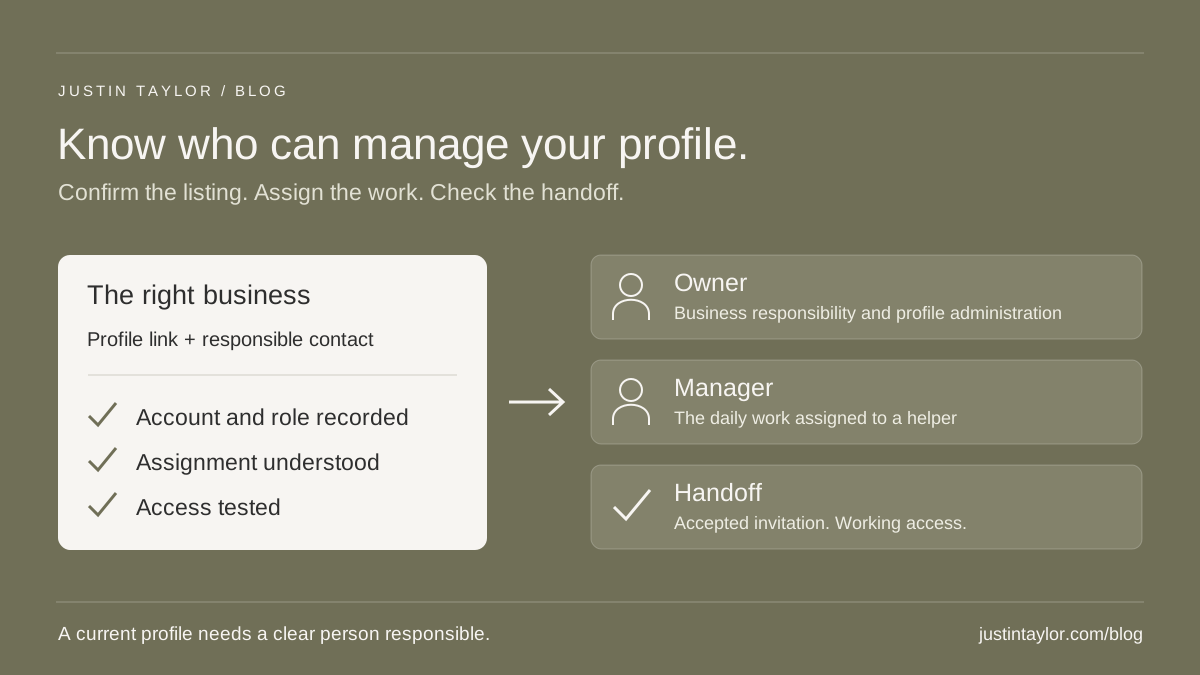
Check your Google Business Profile’s access before you need to change a phone number, replace an agency or hand work to a new assistant. Identify the correct listing, confirm who holds ownership access and give each helper a role suited to their work. Finish by testing that the person responsible can actually manage the profile.
For a real estate team, this is part of keeping client-facing information current. A polished profile is difficult to maintain when nobody knows which account can update it. A short access record makes that responsibility visible.
Semrush’s Google Business Profile guide, dated October 26, 2026, covers claiming existing profiles and requesting access when another account manages them. This article develops that starting point into an access review and handoff routine for agents, brokerage offices and their support teams.
Identify the profile before changing access
Open the public listing and copy its link. Write down the business or practitioner it represents. An individual agent’s profile and the brokerage office’s profile are separate responsibilities, even when the same assistant helps maintain both.
Consider a hypothetical agent leaving a brokerage while a new office administrator starts. The agent’s personal listing, the office listing and the brokerage website may involve different authorized people. Changing access to one does not settle who should manage the others.
Start with the existing listing and agree on the responsible business contact. If the profile’s identity is unclear, resolve that before inviting anyone. The Business Profile guide for real estate agents explains the broader setup questions. An access problem is not a reason to turn an office listing into an individual agent’s listing.
Make a small access record
With an authorized account, open the profile’s More → Business Profile settings → People and access area. Google’s owner and manager documentation identifies this as the place to review current users and pending invitations.
Record only what is needed to coordinate the work. Keep the record in a restricted team folder; it should describe access, not contain passwords or verification codes. Use a separate row for each listing if the business maintains several.
| Record | What to capture | What confirms it |
|---|---|---|
| Profile identity | Public listing link and the business it represents. | The responsible business contact recognizes the correct listing. |
| Current access | Account email, person, role and any pending invitation. | The account appears in People and access. |
| Work assigned | The updates or review tasks each person handles. | That person understands the assignment. |
| Handoff status | Invitation date, acceptance check and any role-change task. | The receiving person opens the intended profile. |
| Next review | A named reviewer and a date or staffing event. | The review is on the team’s working calendar. |
Do not mark “access confirmed” merely because someone sent an invitation. Ask the recipient to open the profile using the invited account. A screenshot of the public listing proves that they can find the business, not that they can manage it.
Match the role to the work
Google allows multiple owners but one primary owner. Owners can administer users and the profile. Managers can handle most daily work, including information updates, posts and review replies, but cannot add or remove users or remove the profile.
For an assistant responsible for approved photos and review replies, manager access may fit the assignment. Ownership should reflect responsibility for administering the profile. These are role-planning recommendations; decide them with the authorized business contact rather than giving everyone the broadest role.
Google’s profile-protection guidance says a business using a third-party manager should retain owner access. It also recommends limiting access to people who need it. Confirm that arrangement when beginning work with an agency, while everyone is available to complete the setup.
Agree separately on who approves changes to the business name, address or website. A platform role determines what someone can do; an assignment tells them what they are expected to do.
Invite the account and confirm the result
Each person should use their own Google Account rather than sharing a password. Following Google’s current instructions, an owner can:
- Open People and access and select Add.
- Enter the intended account’s email address.
- Choose Owner or Manager under Access.
- Select Invite.
Confirm the address with the recipient first, especially when they use several accounts. Then have them accept and locate the correct profile. Record the result and give them the approved business information, current photographs and any unfinished work. Access without that context leaves the next person guessing.
Plan the handoff before the departure date
A hypothetical brokerage replacing a marketing contractor could begin by confirming that its authorized business representative has owner access. The replacement helper receives the appropriate role and a list of open tasks. The outgoing helper explains pending edits before their access ends.
If primary ownership needs to change, have the current primary owner follow Google’s transfer instructions: select the receiving user in People and access, edit Access, choose Primary owner and save. The receiving person must already be an owner or manager.
Google applies a seven-day waiting period to certain actions for new owners and managers, including primary-ownership transfers and removing other users. Build that into the handoff schedule. An accepted invitation does not mean every administrative action is immediately available.
Once the continuing team’s access is confirmed and the agreed work is handed over, an owner can select the departing user in People and access and choose Remove person. Use the user-removal control carefully; removing a person and removing the business profile are different actions.
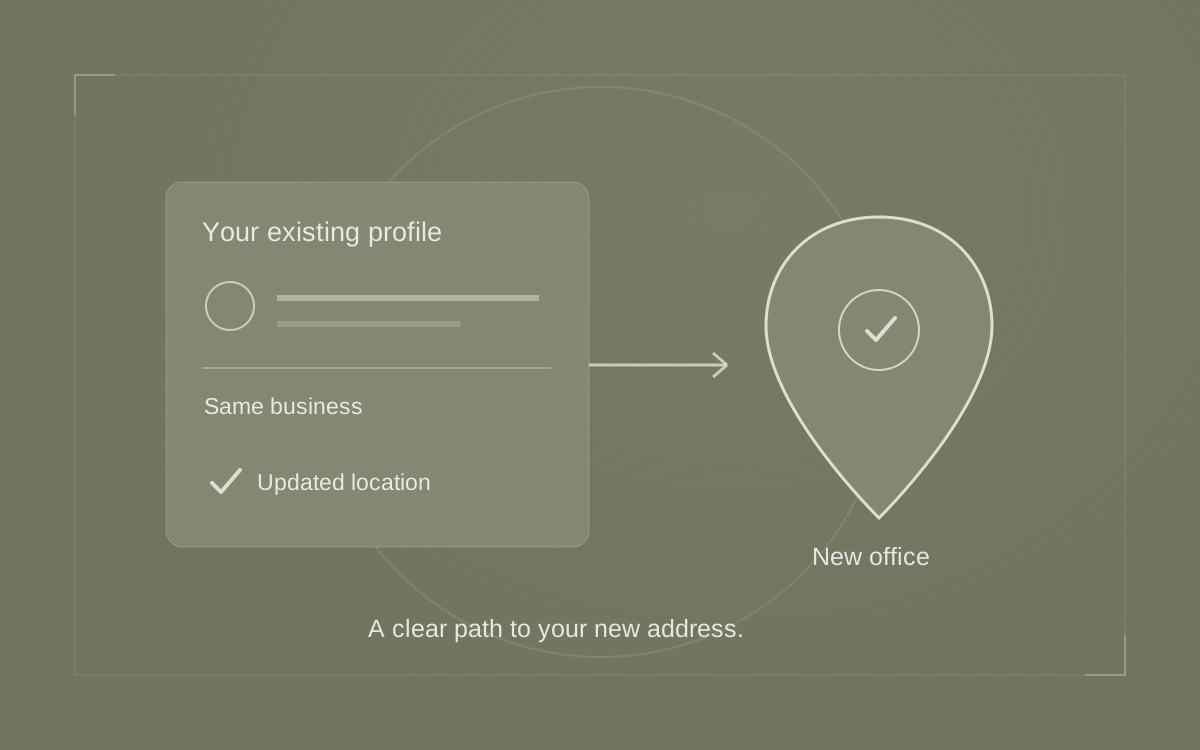
If the handoff also involves a new office, use the office-move checklist for the address and client directions. Keep the access work and location work separately assigned so neither is assumed complete.
Use the ownership request route when access is missing
First check which Google Account you are using. If the correct existing profile is controlled by someone else, follow Google’s ownership-request guidance when you are authorized to manage the business.
For a storefront or hybrid business, start at Google’s business setup page, find the existing business by name and address, select it and choose Request Access. Complete and submit the form. For a service-area business without a physical shop or office, Google directs ownership requests through support.
The current owner has three days to respond. If there is no response, Google may offer a claim or verification option through the request confirmation; that option is not always available. Keep the confirmation email and follow the status of that request rather than creating another listing.
Keep access tied to real responsibilities
Review the record when an assistant leaves, an agency engagement changes or responsibility moves between team members. A brief scheduled review can also catch invitations that were never accepted or assignments that no longer match the current team.
Ask the person taking over to check the public phone number, website link and recent profile activity. This connects the handoff to what prospective clients actually encounter. The local citation audit can help if those details differ across other public profiles.
A USEFUL COMPLETION CHECK
The right business is identified, its authorized representative retains ownership access, current helpers have appropriate roles, and the next person responsible can open the profile and explain their assignment.
An access review supports continuity and accurate information; it does not promise a search-ranking change. If your team needs a clearer picture of its profiles and contact paths, explore Google Business Profile support with Justin.
Sources & further reading
Platform guidance and research referenced in this article. Reviewed October 29, 2026.
- Semrush: Google My Business — a guide to Google Business Profile, October 26, 2026
- Google Business Profile Help: Manage your Business Profile owners and managers
- Google Business Profile Help: Transfer primary ownership of a Business Profile
- Google Business Profile Help: Request ownership of a Business Profile
- Google Business Profile Help: Help protect your Google Business Profile

Growth & Strategy Manager at Inspire Title Team | WFG Title. Marketing and AI guidance for real estate professionals.