

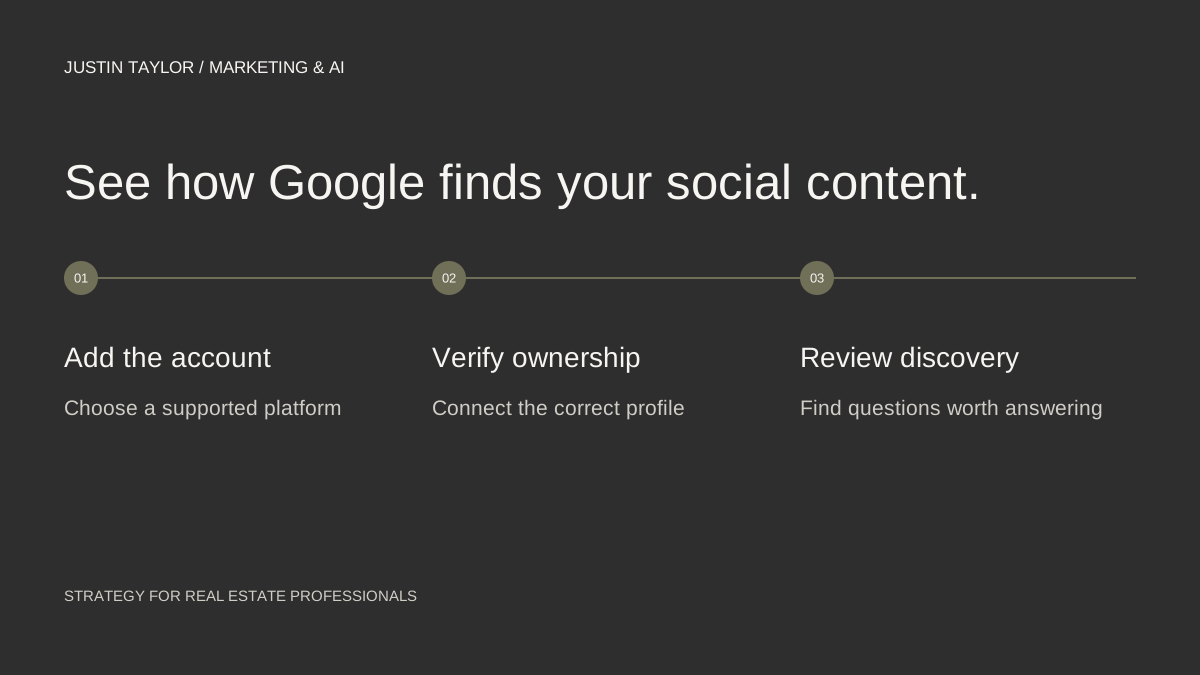
You can now add supported social accounts to Google Search Console and see how people find their content through Google. For a real estate agent, that creates a useful connection between the videos and posts you publish and the questions prospective clients search for.
Google calls these platform properties. Its July 2026 announcement lists Instagram, TikTok, X and YouTube. Facebook and LinkedIn are not on that supported list. This is search reporting; it does not publish posts or connect your social accounts to Google Business Profile.
What to have ready
Use the Google account you want to keep responsible for your reporting. Have access to the social account or channel you are connecting, and check its exact handle before starting. An agent’s personal channel, a team account and a brokerage account are different assets.
You do not need to own a separate website to use this feature. If someone else already manages the property, ask them to give your Google account access instead of exchanging passwords. Google’s property setup documentation describes ownership verification and shared access.
How to connect a social account to Search Console
- Open Search Console. Visit the Search Console welcome screen and sign in with your chosen Google account.
- Open the property selector. If you already use Search Console, open the dropdown in the sidebar and choose Add property. New users can begin on the welcome screen.
- Select your platform. Click Add beside Instagram, TikTok, X or YouTube. Choose the platform option rather than trying to verify the social network’s domain as your own website.
- Complete the ownership check. Follow the verification prompts. Google documents direct platform login or an automated connection through an existing website property. Where sign-in is requested, use the account that controls the intended profile or channel and review the authorization screen.
- Open the verified property. After the ownership confirmation appears, select Go to property. Check that the account or channel shown is the one you intended to add.
- Repeat for other accounts. Add each supported account separately. Keep a simple list of platform, handle and responsible Google account so the team knows what is connected.
These steps follow Google’s platform-property instructions. The authorization prompts depend on the platform and account; Google does not document one identical login sequence for all four.
If the option or data is missing
Google’s help documentation still notes gradual availability. If platform options are absent, check the welcome screen and the current help page. Adding your social URL as an ordinary website property is not a substitute for this feature. You cannot verify ownership of instagram.com or youtube.com through your own domain’s DNS.
New reports can take a few days to populate, and recently created properties may show only partial history. A lost connection can require verification again. An empty chart on day one does not establish that your content has a search problem.
What to review after connecting
Use Performance for search clicks, impressions and the posts and queries behind them. Use Insights for a quicker overview of content trends. These reports measure discovery through Google, not your total Instagram reach or YouTube views. Keep the platform’s own analytics for activity inside that platform.
AN AGENT’S FIRST REVIEW
Choose one account and one reporting period. Write down a question that appears, the post Google showed and whether that post answers the question fully. Then decide on one follow-up video or a clearer explanation on your website.
For example, suppose a video about preparing for a home-search trip receives search impressions. Watch it as a first-time visitor. Does it explain how to organize appointments, what information to prepare and where to find a written checklist? Those are editorial questions you can act on without treating every impression as a potential lead.
Turn the information into a content decision
Keep a monthly note with four fields: question, existing content, missing explanation and next action. If the same question appears repeatedly, create a fuller answer and connect it to the original post where the platform allows. If a post attracts unrelated searches, review whether its title and opening accurately describe the subject.
Connecting an account does not itself improve rankings; Google describes adding properties as a reporting step. The value comes from what you learn and improve. Use the content-cluster guide to organize those answers, or follow the Search Console content workflow for your website.
Sources & further reading
Platform guidance and research referenced in this article. Reviewed September 27, 2026.

Growth & Strategy Manager at Inspire Title Team | WFG Title. Marketing and AI guidance for real estate professionals.