
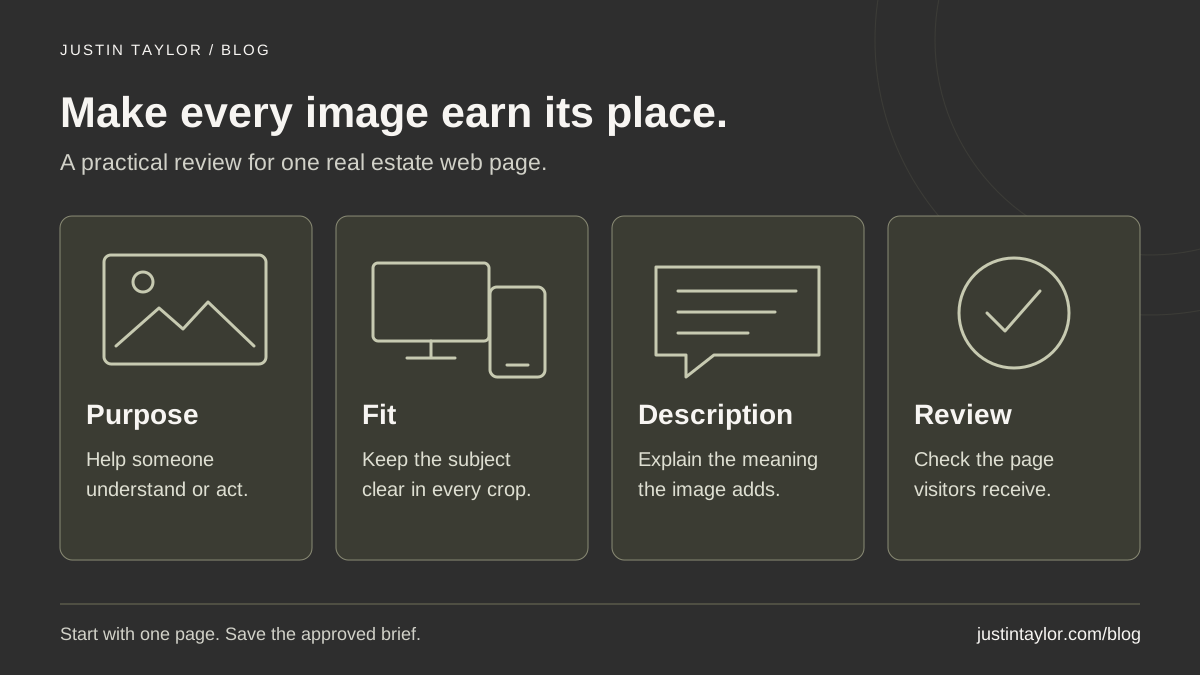
To improve images on a real estate website, give each one a clear purpose, export it for the space it occupies, describe meaningful information accurately and check the published page on a phone. A useful image should help someone recognize your business, understand a place or complete a task without making the page unnecessarily difficult to load.
Semrush’s SEO checklist, dated October 1, 2026, includes reviewing image alternatives and keeping their descriptions accurate. This guide applies that principle to a small, practical assignment: preparing an image brief for one real estate page. The technical recommendations below were checked against current official documentation on November 5, 2026.
Give each image a job on the page
Start with a page people use to make a decision: your biography, seller-service page or a community guide. List its images and write what each contributes. “Shows the entrance visitors should use” is a useful purpose. “Fills the space above the heading” is a design choice that deserves another look.
Consider a hypothetical community guide with three photographs: a broad streetscape, a park entrance and a café interior. The streetscape might introduce the setting. The entrance could support practical directions. The café image needs a reason to be there beyond looking attractive, and its business details should be verified before publication.
Choose photographs you can identify and use appropriately. Keep a record of the source, location and capture date when those details matter. A stock photograph should not be presented as evidence of a specific neighborhood or property. For a diagram, label illustrative information so a reader cannot mistake it for a measured result.
The community-page guide can help you decide what local information the page should support before choosing the visuals.
Prepare the file for its actual placement
Keep the original photograph in your asset library, then prepare a web version. Record where it will appear: a wide opening image, a portrait beside a biography or a small card in the Blog. One crop may not work well in every location.
For example, a portrait that looks balanced beside a full biography may lose the person’s face when the same file is cropped into a short card. Include a preview of both placements in the assignment. Ask for the subject to remain visible rather than asking someone to “make it fit.”
Google’s image guidance supports responsive image versions and common formats including WebP and AVIF. It recommends balancing clarity with loading performance. Ask your provider which sizes the template actually needs, then compare the exported files at their displayed size. There is no single pixel width that suits every website placement.
Use a brief, descriptive filename for a new upload, such as mesa-office-entrance.webp when that description is accurate. Google treats filenames as a light contextual clue. Do not rebuild an existing image library solely to put more keywords into filenames; changing live file addresses creates an additional replacement and link-checking task.
Write the right description for the image’s role
Alt text is an image’s text alternative. It is separate from a visible caption. The W3C decision tree distinguishes informative, decorative and functional images: describe the meaning of an informative image, use an empty alternative for a purely decorative one, and explain the destination or action of an image that functions as a link or button when that function is otherwise unclear. Complex graphics need their substantive information elsewhere on the page.
The examples below are hypothetical. They show how context changes the assignment; they are not descriptions to paste onto unrelated photographs.
| Placement | Possible alternative | Editorial check |
|---|---|---|
| Office-arrival instructions | “Office entrance beneath the olive awning, beside the visitor parking spaces.” | Confirm that this is the entrance clients should use. |
| Portrait in an agent biography | “Jordan Lee, real estate agent.” | Use the actual name and role; avoid a list of service areas. |
| Decorative abstract shape | An empty alt attribute: alt="". | Confirm that no information or action depends on the image. |
| Property-comparison diagram | “Example comparison sheet with space for observations and follow-up questions.” | Provide the fields in readable text or an accessible resource too. |
A caption can add context that every visitor needs, such as the date a local photograph was taken or the fact that a worksheet is an example. Avoid making an image carry an essential qualification that appears nowhere else. Keep headings, instructions and contact details available as ordinary page text.
Review any automatically generated description against the actual image. A system may infer an amenity, location or feature that you have not verified. Remove that inference rather than turning it into published information. The AI content fact-checking guide offers a broader review routine.
Send a specific brief to your website provider
Separate the editorial decisions you can make from the implementation checks your provider needs to perform. For the selected page, send its URL, the approved file, the intended crop, the proposed alternative and any visible caption. Include a screenshot of the current problem if there is one.
Then ask the provider to confirm these points:
- Discoverable image: meaningful images intended for search use a normal HTML image element with a working source URL. Google says it does not index CSS background images.
- Appropriate delivery: responsive versions suit the template, with a fallback source. Check both a narrow screen and a desktop layout.
- Reserved space: image dimensions let the browser allow for the image before it finishes loading.
- Sensible loading: images visible when the page opens, especially the main opening image, are not delayed by lazy loading. Images farther down the page can use it.
The final two checks follow Google’s browser-loading guidance. Lazy loading postpones an image download until it approaches the visible area. Applying it everywhere can delay the image someone came to see. Ask for confirmation of the behavior, not simply confirmation that an optimization switch is turned on.
Review the published result as a visitor
Open the updated page on your phone and a desktop. Confirm the subject stays visible, captions remain readable and the image does not cover a heading or button. Scroll through the whole page so lower images have a chance to load. Follow any image links and check their destinations.
Ask your provider to verify the final image alternatives in the published markup or accessibility inspection. A correct entry in a media library is not enough if the page template never uses it. Compare what was requested with what the visitor actually receives.
Keep a short completion record: page URL, changed image, approved description, reviewer and review date. If a local place, staff role or office arrangement changes, the record gives you a starting point for updating the photograph and its surrounding text together.
Finish one page before expanding the audit. A clear image brief and a checked result are useful improvements in their own right; they do not guarantee image indexing, rankings or AI citations. Justin helps real estate professionals connect website content, structure and search strategy. Explore real estate SEO support or start a conversation about the next page to improve.
Sources & further reading
Platform guidance and research referenced in this article. Reviewed November 5, 2026.

Growth & Strategy Manager at Inspire Title Team | WFG Title. Marketing and AI guidance for real estate professionals.