
A buyer finds your team on Google and sees “Real estate services.” They still have a practical question: can someone help them plan a search before they are ready to tour homes?
Make your Google Business Profile services easier to understand by listing the work your business actually provides, using recognizable names and explaining what a client can expect. Then check that your website and the person answering inquiries describe the same service. A useful entry should help someone decide whether to contact you.
Confirm what this business actually offers
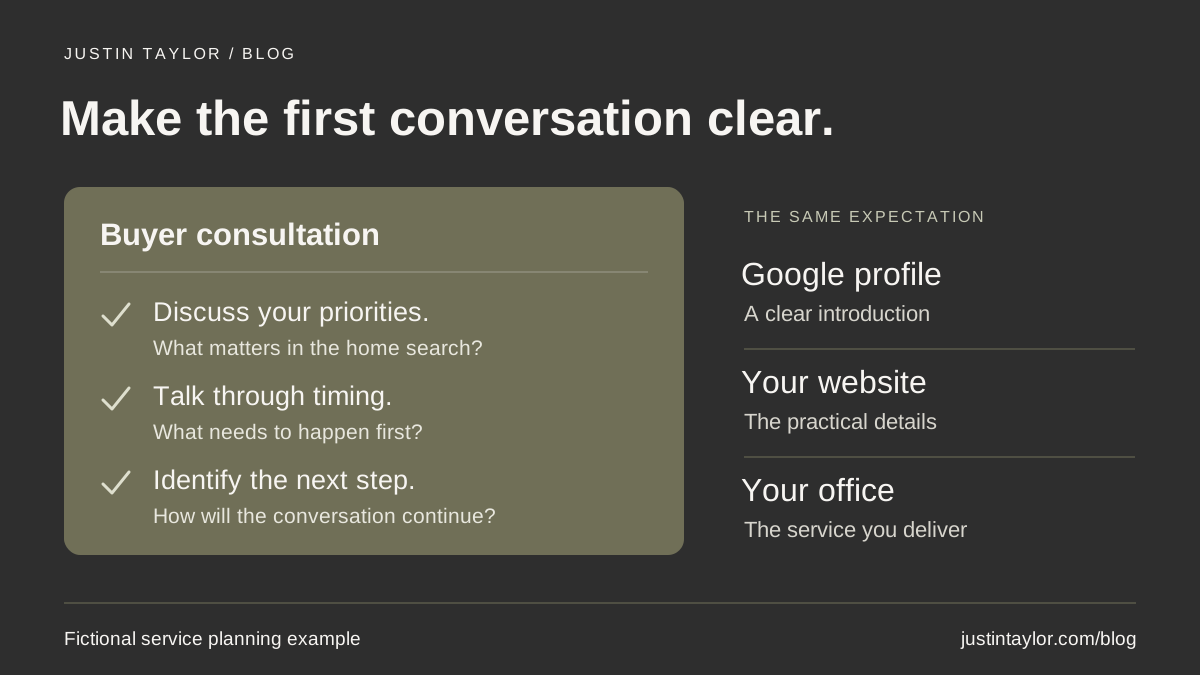
Start with one service people ask about regularly. For a residential team, that might be a buyer consultation. Before writing the description, ask the agent responsible for those meetings what happens during one. Who attends? What does the team discuss? What should a buyer have ready? What happens afterward?
Semrush’s Google Business Profile guide, dated October 26, 2026, recommends keeping product and service information clear and current. For a real estate team, that creates a useful editing assignment: replace broad promises with an explanation of the work a client can request. Read the Semrush guide.
Suppose a fictional Tucson team offers an introductory conversation about a buyer’s priorities, timing and search process. The agent helps identify questions to resolve before arranging tours. That is enough information to draft an honest description. There is no need to invent a meeting length, claim that every buyer leaves ready to purchase, or promise access to homes the team cannot guarantee.
Keep the boundaries of the business clear. A team may introduce clients to a lender without providing financing itself. A brokerage may discuss rental properties without offering ongoing property management. List the service the profile’s business delivers; explain outside referrals separately wherever they are relevant.
Separate the business category from the service
Google’s business category identifies the kind of business. A service describes an offering within it. Google asks businesses to choose a primary category that best represents them from its available list. It advises against adding a category for every service, and category changes can trigger another verification request. Review Google’s category guidance.
The services editor is available only for certain business categories. Check the controls on your own profile. If it is available, Google offers suggested services and allows custom entries. See Google’s services documentation. Keep your category accurate rather than changing it simply to expose an editing option. You can still explain your work on the website when the profile lacks that feature.
Write a description that answers the next question
Use a service name a client would recognize in conversation. Then give the description one job: explain the purpose and scope of that service. “Buyer consultation” is a starting point. A string such as “Best Tucson buyer agent home buying relocation specialist” leaves the actual conversation unexplained.
For the fictional team, a draft could read:
Talk through your home-search priorities, timing and questions with a team agent. The conversation covers how the search works and helps identify next steps before arranging tours.
That wording is an illustration, not a claim about a particular business. Adapt it only after checking your own process. If clients meet with the named agent rather than an available team member, say so. If the appointment focuses on a specific stage, make that stage clear. Leave out “free,” “no obligation” or a promised turnaround unless the business has confirmed those terms.
| Working service name | What the team should clarify |
|---|---|
| Buyer consultation | Who leads the conversation, which questions it covers and what the buyer can do next. |
| Seller consultation | Whether it is an introductory call or a property visit, and what preparation the seller needs. |
| Relocation assistance | Which parts of the move the team supports, such as planning an area visit or organizing a home search. |
| Listing preparation guidance | Whether the agent provides advice, coordinates vendors or supplies a separate paid service. |
These are editorial examples, not a list of Google’s preset services. Keep separate entries only when they describe meaningfully different work. “Buyer help,” “buyer assistance” and “homebuyer support” may all describe the same conversation. One clear explanation gives your team a better reference when someone calls.
Add the approved information to the profile
For a profile with the services editor, Google’s current instructions are:
- Open the managed Business Profile and select Edit services.
- Select a relevant service. To add another, choose Add more services; use Add custom service if the needed offering is absent.
- Open the service to enter its description and, where appropriate, price.
- Select Save. Remove an inaccurate offering using Delete service.
Google says custom service names must exclude prices, phone numbers and personal information, along with profanity or meaningless text. Put any appropriate price information in its own field. Check the service editing instructions and restrictions.
Keep a copy of the approved wording before making changes. If several colleagues manage the profile, identify who will publish this update. That small coordination step makes it easier to trace an unexpected edit without asking everyone to reconstruct what they changed.
Give the website and office the same explanation
Now follow the ordinary website link on the public profile. Can a buyer find an explanation of the consultation? The service entry is a short introduction; your website has room for practical details, including meeting format, preparation and how to request a conversation.
For the Tucson example, the buyer page could introduce the consultation near its contact option. Use the same name, explain who responds and distinguish a request for a callback from a confirmed appointment. If the team offers direct scheduling, use the Google Business Profile booking-link checklist to test that separate route.
Ask someone who handles inquiries to read the description aloud. Could they explain the service to a caller using those words? If the website promises a planning meeting but the office normally starts with a brief screening call, clarify that sequence before publishing the description. The public promise should fit the appointment your team can actually deliver.
Check the published result and keep it current
Saving an edit does not mean it is immediately public. Google reviews profile edits and distinguishes accepted, pending and unapproved changes. Its guidance says reviews usually take up to ten minutes, but can take up to thirty days. Check the status before treating an unchanged public listing as a failed save. Read Google’s explanation of edit statuses.
After acceptance, inspect the public profile on a phone. Read the wording as someone encountering the team for the first time. Check for duplicate entries, old offers and statements that no longer match the website. This is a clarity check, not a promise that adding a service will improve rankings or generate inquiries.
Keep a short internal record with the service name, approved description, responsible person, supporting website page and review date. Revisit it when the team changes its consultation process or stops offering a service. If the profile needs a broader review, the real estate Google Business Profile checklist covers the surrounding basics.
Start with the service that currently creates the most questions. A buyer who understands the purpose of the first conversation can approach your team with a clearer expectation. The agent receiving that inquiry can begin from the same understanding.
Sources & further reading
Platform guidance and research referenced in this article. Reviewed November 15, 2026.
- Semrush — Google My Business: A guide to Google Business Profile (October 26, 2026)
- Google Business Profile Help — Manage your services on your Business Profile
- Google Business Profile Help — Manage your business category
- Google Business Profile Help — Understand what happens to your Business Profile edits

Growth & Strategy Manager at Inspire Title Team | WFG Title. Marketing and AI guidance for real estate professionals.