
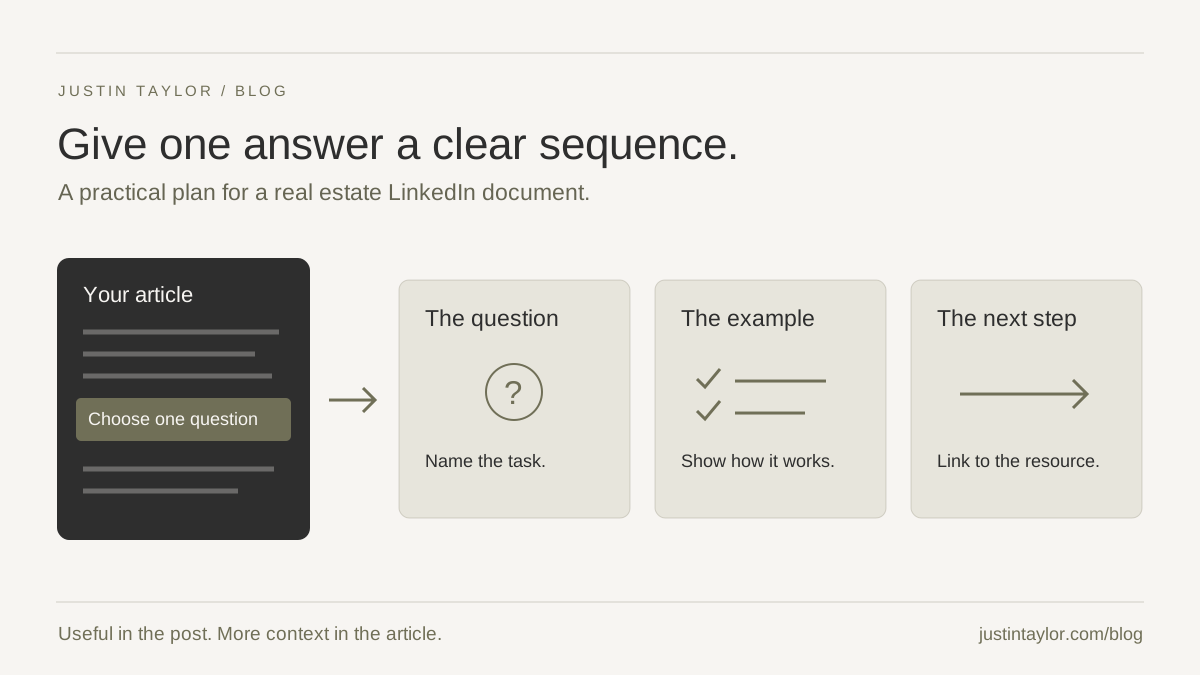
To turn a real estate blog into a useful LinkedIn document post, choose one reader question, build a short sequence that answers it and export the pages as a single PDF. Give people something they can use within the post, then link to the full article for additional context.
A multipage PDF creates the page-through experience often called a carousel. The content should work as a short explanation in its own right. Simply placing each paragraph of a long article on a slide usually leaves readers with too much text and too little direction.
HubSpot’s content-gap guide, updated October 23, 2026, recommends checking whether existing material answers the audience’s actual question clearly and with useful evidence. Although its subject is AI visibility, that editorial test also helps when adapting a blog for LinkedIn. The application below is an original document-planning workflow, with no promise of extra reach or AI citations.
Choose one reader and one question
Start by writing who the post is for and what they should be able to do after reading it. A buyer preparing for a community visit needs a different explanation from an agent building a community page. Both audiences may interest you, but one document should have a clear primary reader.
For example, an agent could adapt a detailed community guide into “What should I research before visiting this area?” A lender could adapt an educational article into questions to bring to an initial conversation. A brokerage leader could explain how the team organizes a first meeting. Choose a subject you can explain accurately without private client information.
Read the source article again before outlining. Mark the essential answer, the example that makes it concrete and any qualification that must travel with it. Check links and dated facts. If a paragraph needs a long explanation to remain accurate, leave that detail in the article and choose a simpler point for the document.
Plan the pages before designing them
Six pages are a manageable starting point for this example, not a LinkedIn requirement or an engagement formula. Use fewer if the answer is complete sooner. Each page should advance the explanation rather than repeat a headline in different words.
The following is a hypothetical document for an agent sharing a community-research article. It makes no claims about a particular neighborhood and does not represent a completed client project.
| Page | Its job | Example copy or content |
|---|---|---|
| Cover | Name the reader’s task. | “Before your community visit: build a useful research list.” |
| Choose a purpose | Narrow the visit. | “Write down what you want to learn in person. Pick two or three questions.” |
| Check the details | Show what to verify. | “For each place you plan to visit, check its official address, current hours and access information.” |
| Plan the actual trip | Make the advice practical. | “Use your own starting point and likely travel time when planning the route.” |
| Record what remains | Give the reader a small tool. | A blank list with columns for question, source checked and follow-up needed. |
| Continue the research | Connect to a relevant resource. | “Use the full community guide for the source links and a place to organize your notes.” |
Read only the page headings in order. They should tell a coherent story. Then read only the body copy: does it deliver the promise on the cover? Replace “Discover everything you need to know” with a specific action the reader can finish.
The community-page guide explains how to organize the underlying website resource. Keep that destination useful and current so the document’s final invitation has somewhere worthwhile to lead.
Design for a phone, then check the PDF
Use a consistent canvas, generous margins and one main idea per page. A square layout is a practical starting choice when your existing graphics are square; it is an editorial choice, not a platform specification. Compare the actual preview on your phone before settling on the layout.
Keep the cover title large enough to understand without opening the document. Interior pages need a short heading, a compact explanation and, where helpful, a simple diagram or example. If the page only works after shrinking the type, shorten the copy or split the thought.
Use your established colors and type hierarchy. Put branding in a consistent, secondary position. A signature or affiliation logo should support recognition without competing with the instruction. Check light text against muted backgrounds and avoid placing essential words over a busy photograph.
Export text as real text where your design tool supports it, then check selection and reading order in the PDF. Provide the core explanation in the post description and linked article as well. A visually attractive deck is not automatically accessible. Ask someone unfamiliar with the draft to read it at normal phone size and tell you what to do next.
Prepare the file and upload it as a document
LinkedIn’s document guidance recommends PDF, requires consistent page sizes and notes that animations or videos inside documents appear as static images. Merge or flatten PDF layers if present. A short educational deck should remain comfortably below the documented limits of 100 MB and 300 pages.
For a desktop homepage post, LinkedIn currently describes this sequence:
- Select Start a post.
- Open More, then Add a document.
- Choose the PDF from your computer.
- Add a descriptive document title and select Done.
- Write the post description, review the result and select Post when ready.
Check the final PDF before uploading: page order, text, branding, source details and the destination URL. LinkedIn’s document FAQ says a post accepts one document and its uploaded file cannot be replaced or edited. Changing the document requires a new post; editing the surrounding description does not fix the file.
Write a description that adds context
Use the opening lines to explain the situation the document helps with. Follow with the practical takeaway and a link to the specific article. Do not make readers search your homepage for the promised resource.
ILLUSTRATIVE POST OPENING
A community visit is more useful when you arrive with a few questions. Start with the places you want to understand, check their current information and keep a note of what still needs an answer. This short guide gives you a way to organize that research.
End with a relevant question, such as “What do you check before you plan a visit?” Use the answers to improve the resource or identify a future topic. Avoid asking for a comment merely to unlock information that the post could provide directly.
Include the article link in the description and make the destination recognizable on the final page. Check the link yourself. If you use a tracking link, keep its naming consistent with your other posts and confirm that it still reaches the correct article.
Review the response and maintain the resource
Record the article URL, PDF filename, LinkedIn post URL and publication date together. Review questions and relevant conversations separately from views or reactions. A useful question from a prospective client may tell you more about the next explanation to create than a large reaction count alone.
If the underlying article changes, inspect the document too. A fixed PDF can continue circulating with old information. Decide whether the change needs a correction in the post, a replacement publication or removal of an inaccurate resource.
This approach complements the guide to repurposing real estate video: keep one useful answer consistent while adapting how people encounter it. Start with one article and one finished document. For help connecting these pieces into a clearer content plan, connect with Justin about your audience, existing material and next useful post.
Sources & further reading
Platform guidance and research referenced in this article. Reviewed October 28, 2026.

Growth & Strategy Manager at Inspire Title Team | WFG Title. Marketing and AI guidance for real estate professionals.